When going into isolation, workers select from the types of isolation that you have defined and assigned to them.
Assume you have a maintenance team and a land survey team. Members of the maintenance team might use the isolation types “Travel” and “Generator Maintenance,” while the land survey team uses “Travel” as well as “Surveying.”
You define types of isolation based on LoneComply isolation templates. You then assign these isolation types to the team members.
On this page:
From the main menu, select Isolation Types and then Add New to create a new isolation type.
In the list that opens, you can select from various templates to start with:
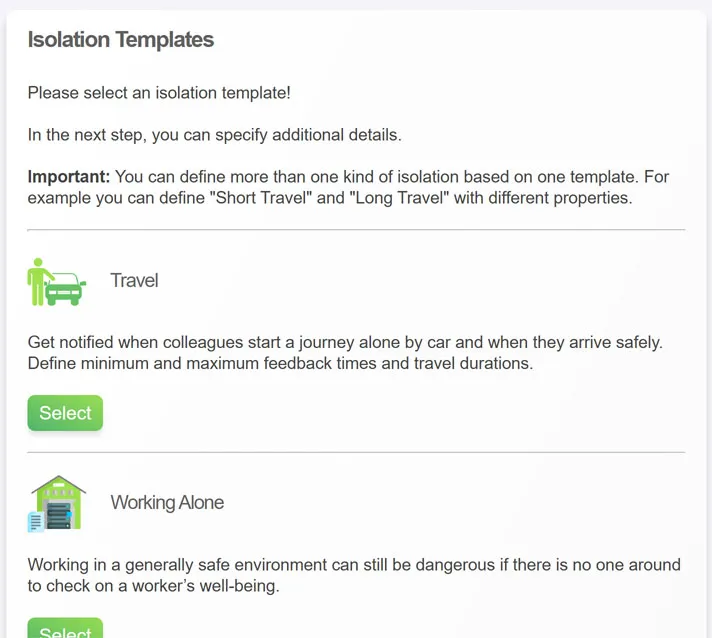
The template defines the basic capabilities of the isolation type and its appearance, while you define a few parameters.
The following templates are available:
1.  Travel
For this template, you can specify a name and the maximum travel duration that workers can choose.
In addition, you can specify whether supervisors must approve the travel before the worker starts, or whether workers can start on their own.
Finally, you can specify whether this type of isolation should use geolocation. If enabled (and if the worker has approved location services for the LoneComply app), location information will be sent to the server continuously. However, it will only be made available to the supervisor if the worker exceeds the isolation duration. See here for more information.
2.  Working Alone
This is a basic isolation type. You define whether supervisor approval is required and the maximum isolation duration.
In addition, you can specify a life tick period. Workers must tap the life-tick button within this period. For example, you might specify a maximum duration of 240 minutes and require workers to send a life sign every 30 minutes.
You can also specify whether geolocation should be used.
3.  Stepwise Procedure
This isolation type allows you to define a set of process steps that a worker will go through during isolation.
For example, if you define an isolation type “Boiler Cleaning,” you might define steps such as “Cooldown,” “Cleaning,” “Safety Check,” and “Restart.”
Note: The steps you define are not enforced by LoneComply, as it is not a process management tool. Workers can switch freely between steps in the app. However, the supervisor can always see which step the worker is currently performing. This helps locate the worker in case of an emergency or simply check whether tasks are taking longer than expected.
For each step, you can define a maximum duration and whether workers require supervisor clearance or can proceed on their own.
Geolocation can also be activated if needed.
4.  Monitor Risk Exposure
Isolation types based on this template allow you to define a list of hazards or dangerous activities that workers might encounter.
During isolated work, a worker simply taps the specified source of risk so that supervisors always know the current exposure.
One example would be guards performing nightly rounds at a large facility. At various locations, you might want them to check in so that you know where they are.
To simplify things, you can print QR code labels for each hazard. In the guard example, you might place these codes near checkpoints (for example, entrances to buildings). Guards simply scan the codes when passing by. This also automatically ties the event to the location.
Geolocation can also be added here.
5.  High Risk Work
This isolation type is useful when supervisors need to be alerted very quickly if a worker gets into trouble. Examples include work involving heat, high voltage, or work at height.
The idea is that workers send life signs frequently.
To make this easier, LoneComply supports voice commands. Workers are expected to use headsets or earbuds. At intervals you define (for example, every 5 minutes), workers are prompted by a beep and must then speak a keyword into the system.
This allows workers to send life ticks hands-free without putting down tools or removing gloves. However, they must be conscious and able to speak.
This isolation template also allows geolocation to be activated.
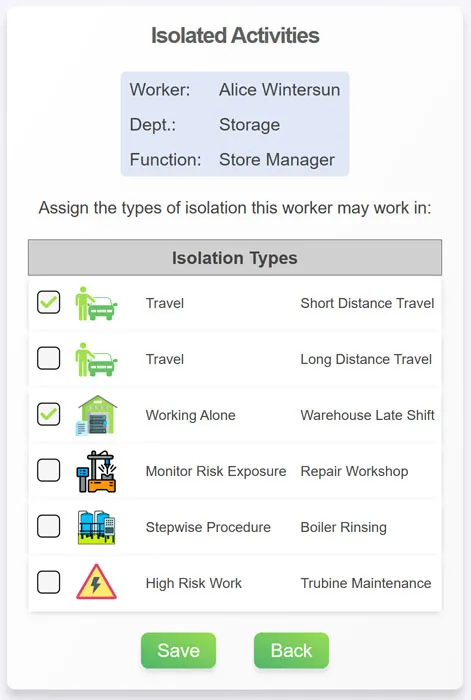
Once you have created workers and isolation types to LoneComply, you can assign isolation types to workers.
Workers will see exactly those isolation types that you have assigned to them.
Select Workers' Isolation Types from the main menu.
Next: Workers in isolation, supervisors on duty:Step 4 Back
