The worker is the one who initiates the isolation procedure in LoneComply.
The supervisor may be hundreds of miles away and is informed by the app and the dashboard.
Ideally, you should assign more than one supervisor to a worker so that there is always at least one supervisor on duty and available for supervision.
On this page:
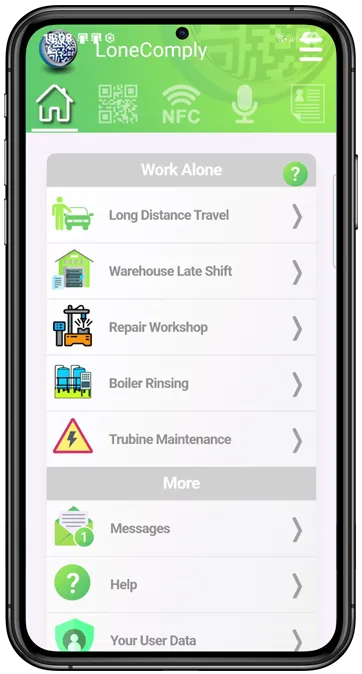
A worker who needs to work in isolation selects the appropriate type of isolation from the main menu of the LoneComply app.
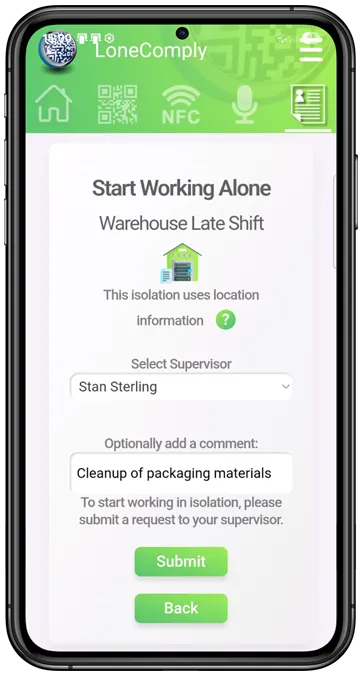
If more than one supervisor is available, the worker can select one.
Depending on the type of isolation, additional information may be provided. A comment can always be added to be shown to the supervisor.
When monitoring one or more isolations, supervisors select “Active Isolations” from the main menu to open the dashboard.
The dashboard is the central cockpit for supervisors. All actions related to ongoing isolations are performed here.
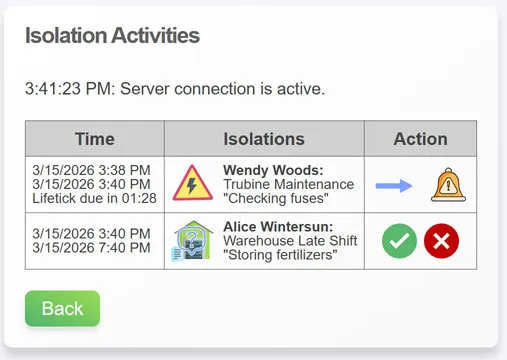
Supervisors see only those isolations they are currently supervising, as well as supervision transfer requests they receive from other supervisors.
Supervisors can perform the following actions on isolations:
1. 
 Approve or Reject Supervision Requests
If a worker wants to go into isolation but the supervisor does not want to take over supervision, they can reject the request. Workers can try again later or select another supervisor if available.
2.  Send a Transfer Request to Another Supervisor
If an isolation lasts longer than a supervisor wants to monitor it, the supervisor can send a transfer request to another supervisor. That supervisor can either accept or reject the request. If accepted, the isolation is marked as transferred on the original supervisor’s dashboard and regularly appears on the new supervisor’s dashboard.
3.  Send a Termination Request to the Worker
A supervisor can always send a request to the worker to terminate the isolated work.
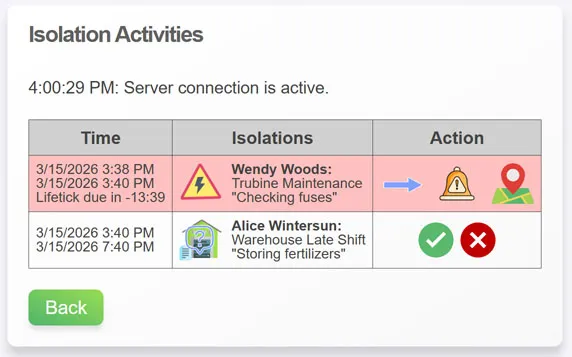
4.  Show the Worker’s Location on the Map
When an isolation enters a red state and location information for the worker is available, it can be displayed using this icon.
5.  Archive an Isolation
When a worker completes an isolation, it is not immediately removed from the dashboard. Instead, the supervisor sees the completion note and can confirm it by archiving the isolation.
When initiating isolated work, workers can only select supervisors who are assigned to them and who are currently available to supervise.
Supervisors can toggle their availability at any time. From the main menu, they select “Your Availability” and adjust the switch.
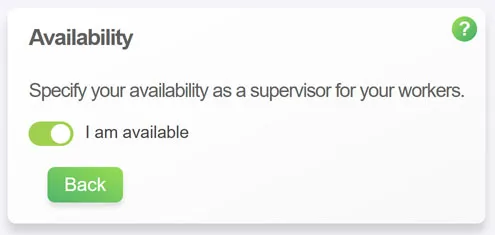
When not on duty, supervisors should turn this off so that workers do not lose time waiting for their isolation requests to be approved.
Next: Geolocation: Imortant Considerations:Step 5 Back
